

Extracting data from a PDF file to import it into an Excel spreadsheet may seem like a purely technical task. In reality, it is a strategic necessity for any SME that wants to make decisions based on facts, not feelings.
PDF documents, which are perfect for sharing reports and presentations, have one significant limitation: they lock data into a static format. This makes them virtually impossible to analyze, transform into charts, or use to understand market trends.
Understanding how to convert a PDF file to Excel efficiently and accurately is the first step to unlocking the hidden potential in your documents. In this guide, we'll show you the most effective methods, from the built-in tools you already have to professional solutions, for transforming static data into strategic insights for your growth.
Often, the most important data for a business—from financial statements to customer records—is trapped right there, inside a PDF. Relying on the old manual copy-and-paste method is not only a slow and tedious process; it is a source of costly errors that can completely invalidate your analyses.
Imagine having to analyze quarterly sales contained in a 50-page report. Manually, it would take you hours, with a very high risk of mistyping a number. A well-executed conversion, on the other hand, turns this task into a matter of minutes.
Understanding how to convert a PDF file to Excel cleanly and quickly unlocks the hidden potential in your documents.
Once the data is in an Excel spreadsheet, it immediately becomes a much more powerful and flexible tool. Here's what you can do:
The ultimate goal is not simply to move numbers from one program to another. It is to transform static, locked-in information into a dynamic corporate asset, ready to fuel your business decisions.
This is not a niche requirement, but a practice so widespread that even public institutions recognize its importance. Tax statistics from the Italian Department of Finance, for example, show how crucial this conversion is for analyzing IRPEF tax returns.
According to the data, 75% of professionals save an average of 15 hours per month by using conversion tools, reducing errors by 22%. If you wish, you can learn more about the impact of this practice on Italian tax data.
When it comes to converting a PDF file to Excel, there is no one-size-fits-all magic formula. The best method depends entirely on the nature of your document, how often you perform this operation, and, last but not least, the level of security required for your data.
Choosing the wrong tool can turn into a nightmare of frustration, wasted time, and, in the worst case, inaccurate data or privacy risks. That's why it's essential to understand your options before you begin.
First, ask yourself a simple question: why am I converting this file? Do you need the data just for quick reference, or does it need to form the basis for in-depth analysis?
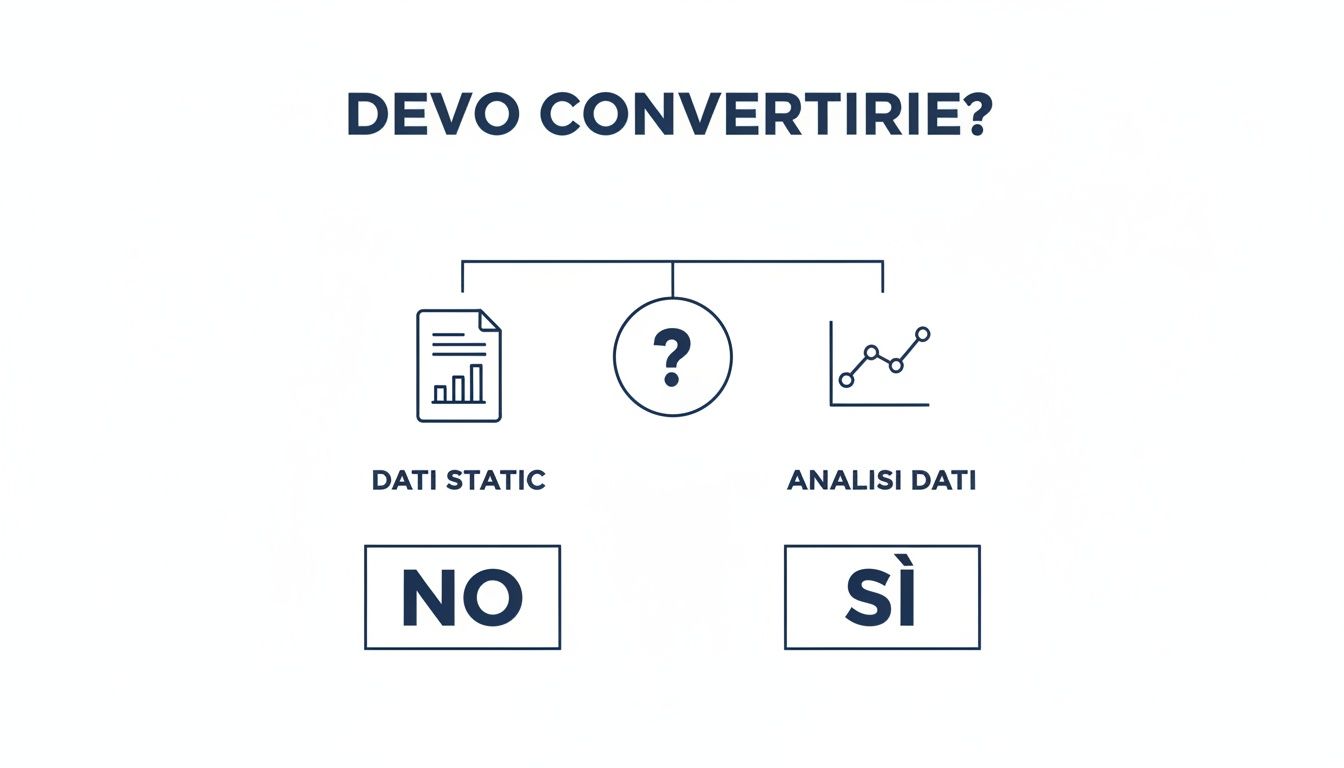
This little mental diagram immediately clarifies the point: conversion only makes sense when data needs to be "freed" from PDF in order to be queried, manipulated, and analyzed.
You may not know it, but you probably already have a powerful tool for this job on your computer. Within Excel, the "Get Data from PDF" feature, accessible via Power Query, is often the quickest, safest, and smartest choice to start with.
It is the ideal solution for so-called "native" PDFs, i.e., documents created directly in digital format, perhaps saved from Word or other software. Power Query is exceptional at recognizing well-structured tables and, importantly, allows you to clean and organize data before even loading it into the spreadsheet.
For those who refuse to compromise and seek maximum fidelity to the original, Adobe Acrobat Pro is the industry standard. After all, who better than the creator of the PDF format to know how to take it apart and put it back together correctly? Its conversion preserves formatting almost flawlessly.
This is the perfect solution for companies that handle large volumes of documents or work with complex, multi-layered tables. Reliability comes at a price, but the investment pays for itself in the time saved on manual corrections.
Adobe Acrobat Pro doesn't just "translate" data; it's designed to maintain the structural integrity of the original document, a detail that makes all the difference in the world.
Services such as Smallpdf or iLovePDF are the epitome of convenience. You upload your file, wait a few seconds, and download your Excel sheet. Great for occasional conversions of non-critical documents.
Convenience, however, comes at a price, and in this case, that price is security. Every time you upload a document to a third-party server, you lose control of it. This is a practice to be avoided at all costs when it comes to financial reports, customer data, or any information you would consider sensitive.
What if your PDF is just a photo of a table? This is where the magic of OCR (Optical Character Recognition) software comes into play. This technology essentially "reads" the text within an image and converts it into digital characters that you can finally copy, paste, and edit.
These tools are indispensable for digitizing paper invoices, old printed reports, or any other document that has been scanned. Accuracy is not always 100%, it's true, but it's the only viable option when dealing with data "trapped" in an image. Automating these processes is essential, especially if you then need to integrate the extracted data with other systems using tools such as Zapier to feed your analyses.
Many people don't know that Microsoft Excel hides an extraordinarily powerful tool for extracting data, which is often overlooked but incredibly effective. We're talking about Power Query, the real engine behind the "Get Data from PDF" feature.
Please note, this is not a simple conversion. It is a genuine import and transformation process that gives you precise control over the final result. Unlike online converters, this method is completely secure: your files never leave your computer, which is no small detail when handling sensitive data. It is the ideal solution when dealing with "native" PDFs, i.e., digitally created documents that contain well-structured tables.
What used to be a tedious manual copy-and-paste task now becomes a smooth, accurate, and, above all, repeatable operation.
Getting started is much easier than you might think. The starting point is the Data tab in the Excel ribbon.
Now Excel gets to work. It analyzes the document and displays a window called "Navigator." Here you will find a list of all the tables and pages that Power Query has been able to identify. When you select a table, you will immediately see a preview on the right to help you determine if it is the right one.

And here comes the real magic. Instead of clicking "Load" right away, the professional move is to choose Transform Data. This action opens the Power Query Editor, a dedicated workspace where you can shape your data before it arrives in your spreadsheet.
The Power Query Editor is your data cleaning lab. Every change you make is recorded as a step, creating a process that you can update with a single click if the source PDF changes. That's what makes the difference.
Within the editor, the possibilities are virtually endless. You can:
This proactive approach is essential in Italy, where converting PDFs to Excel is a daily practice for companies that process statistical data. Consider the surveys conducted by the Bank of Italy: thousands of intermediaries must integrate data from PDFs into Excel for reporting purposes. According to recent analyses, 70% of Italian SMEs use integrated tools such as Excel, reducing processing times by 40% compared to older manual methods. For those interested, the Bank of Italy itself provides official instructions for its statistical surveys, which often involve this type of file.
Once the data is clean and structured exactly as you want it, just click "Close and load." The result will be a perfect table, formatted and ready for analysis, without the typical errors of wild copy-and-paste.
We have seen how to handle "native" PDFs, but what happens when the document you have in front of you is a simple image? Perhaps you have scanned a paper invoice or photographed an old report. In these cases, you are dealing with an image-based PDF. A standard converter will not see any text or tables, only a large photograph.
This is where an almost magical technology comes into play:OCR (Optical Character Recognition). An OCR tool does more than just convert the file. It actually "reads" the image, recognizes the shapes of letters and numbers, and transforms them into digital text that you can finally edit. It's the bridge you need to bring data from the physical world into your spreadsheets.
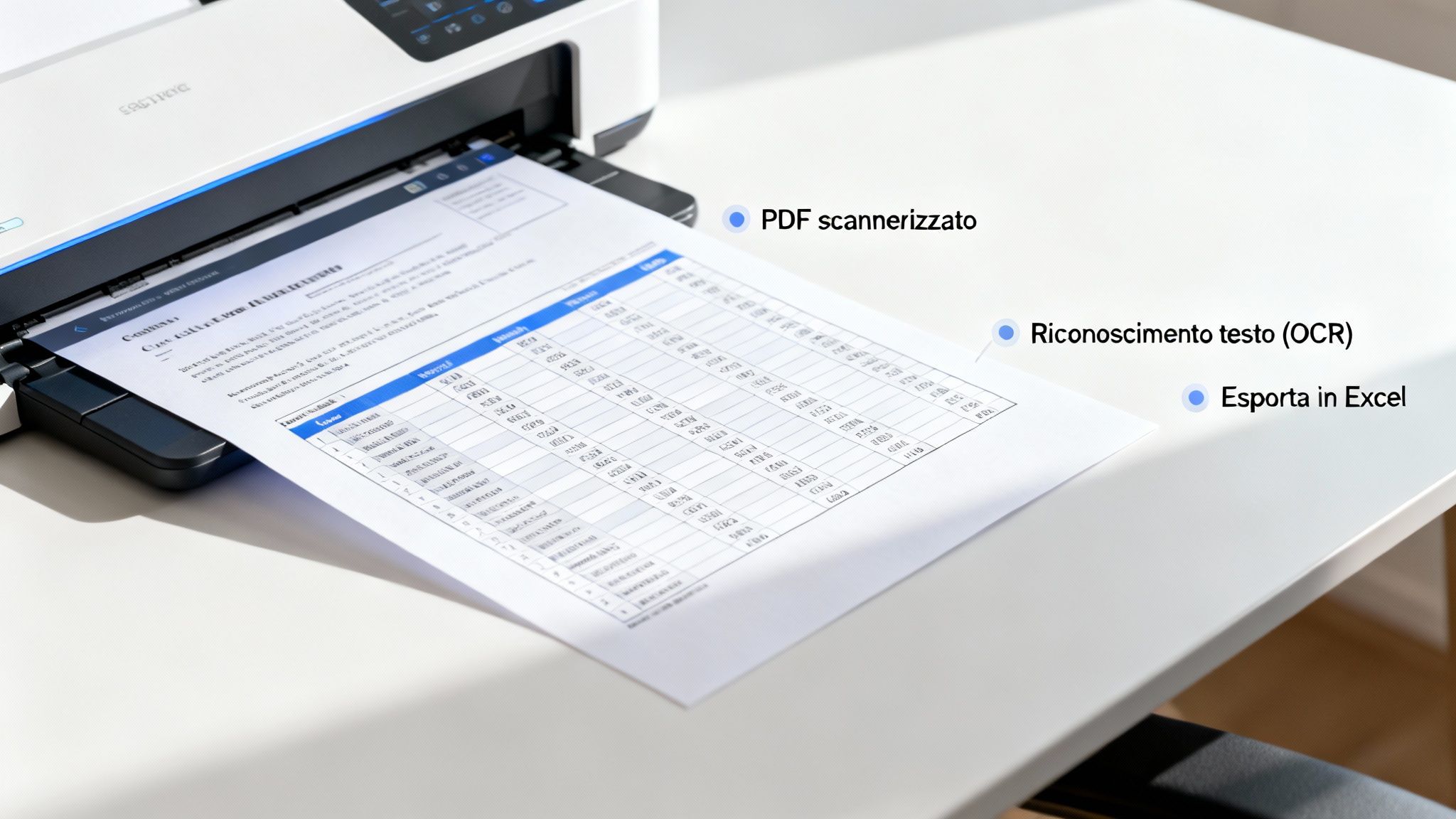
Choosing the right tool is essential. Professional solutions such as Adobe Acrobat Pro or ABBYY FineReader offer extremely high accuracy, but obviously come at a cost. There are also more affordable options, often integrated into software you already own or available online, but it is always worth testing their reliability before entrusting them with important jobs.
OCR technology, however powerful, is not infallible. Its effectiveness depends greatly on the quality of the source document. To prevent the process from turning into a nightmare of manual corrections, you need to prepare your documents with some care.
Think of OCR as an assistant you've asked to read and transcribe a document. If the text is blurred, crooked, or stained, even the best assistant will have a hard time making sense of it.
A clean scan is already 90% of the job done. Here is a practical checklist to avoid mistakes:
Once OCR has generated a "readable" text file, you can use Excel's data import feature or other tools to complete the operation and finally convert a PDF file to Excel.
This digitization process is a crucial step not only for analysis, but also for workflow automation. Think about it: once extracted, this data could be automatically sent to other applications. For those who want to go further, it is interesting to understand how Electe APIs work Electe integrate data and analysis. By following these tips, even the most difficult documents will become a goldmine of data ready for analysis.
You've finally converted that PDF to Excel. Great job. Too bad that, very often, what you end up with is a spreadsheet that looks like it's been through an explosion.
Numbers that Excel insists on reading as text, randomly merged cells that ruin any filter, and those annoying invisible white spaces that sabotage formulas. These aren't minor details; they're loose cannons ready to blow up your entire analysis.
The cleaning phase is not optional; it is the heart of the job. Fortunately, Excel has a veritable arsenal of tools for getting your data back in order. Let's take a look at how to transform that chaos into a clean and reliable dataset, because only then can the conversion from PDF to Excel be considered truly successful.
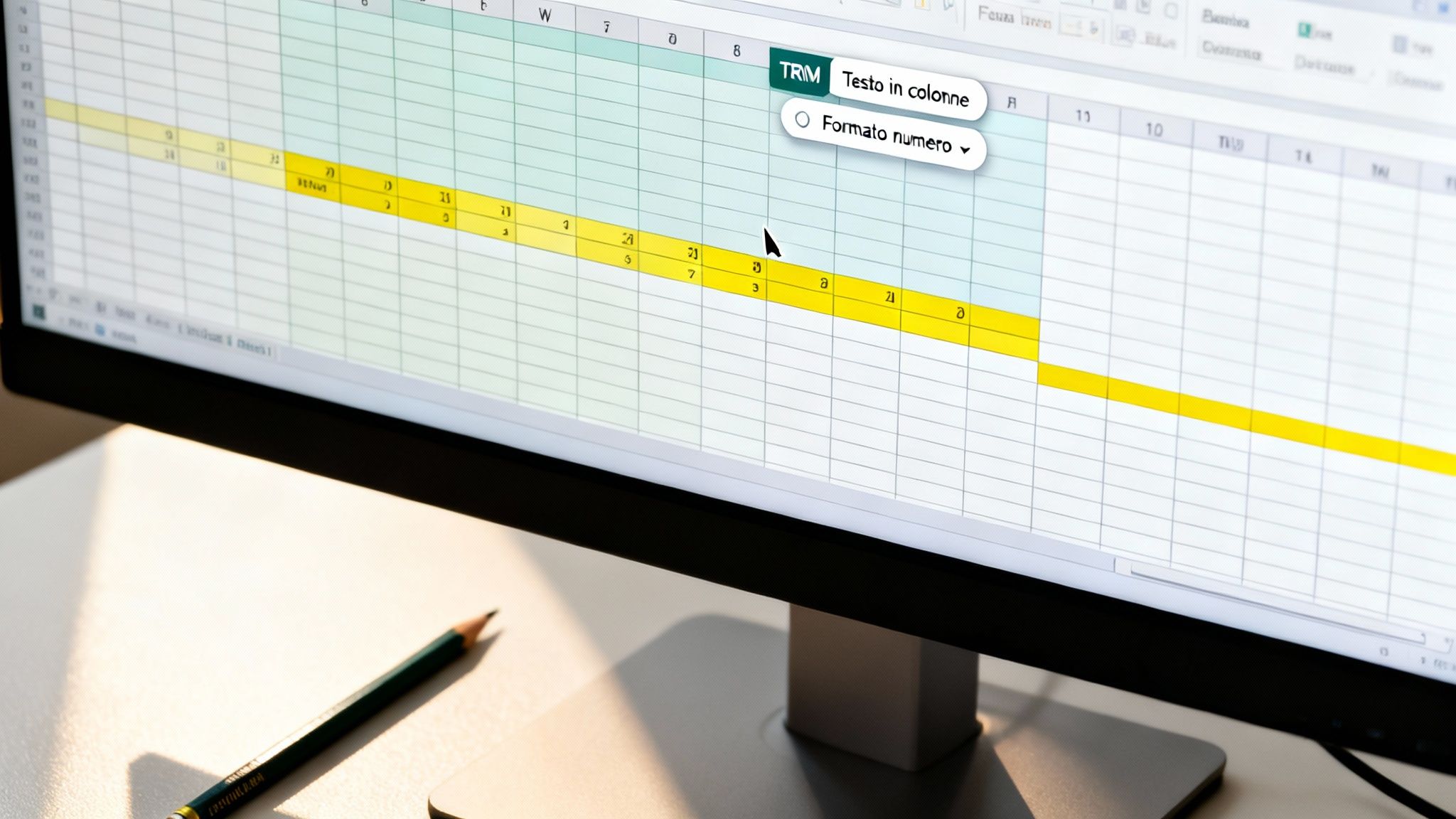
It's one of the most common and annoying problems: data that should be in separate columns ends up all jumbled together in one. This happens when the structure of the original PDF was not perfectly aligned.
Don't panic, the solution is called Text in Columns.
Select the offending column, go to the Data tab, and click on "Text to Columns." A simple wizard will open. In most cases, you will need to choose:
This tool is a godsend: with just a few clicks, it "slices" the data and distributes it correctly into the right columns, reconstructing the tabular structure you need.
Another classic: you have a column of numbers, but Excel treats them as plain text. You notice this immediately because they are aligned to the left instead of the right and, of course, any formula such as SUM gives you an error.
Keep an eye out for the little green triangle that appears in the corner of the cell. It's Excel's warning signal telling you, "Hey, there's a number stored as text here!" Ignoring it is one of the most costly mistakes you can make.
To fix this, select the cells. A small warning icon will appear: click on it and choose Convert to numberIf there are many cells, there is a professional trick: write 1 in an empty cell, copy it, then select the entire range to be corrected and use "Paste Special" > "Multiply." Done.
Sometimes the data looks perfect, but the formulas still don't work. The culprit? Almost always an extra space at the beginning or end of the text, completely invisible to the eye.
The function CANCEL.SPACES (in English TRIM) is your secret weapon.
In a support column, write the formula =CLEAR.SPACES(A1), where A1 is the first cell to be cleaned up. Then simply drag the formula down to apply it to all the others. This magical function removes all unnecessary spaces, leaving only single spaces between words. A lifesaver.
This cleaning phase is essential in any context, but it becomes critical when handling large-scale data. Just think of the recent update of the Ateco classification by Istat, which forced around 1.2 million Italian companies to manage data often received in PDF format. Istat data shows that 35% of SMEs encounter difficulties in post-conversion cleaning, a key step in avoiding costly errors. For more information, you can consult the official Sistan publications on the importance of data validation.
We have explored different methods and strategies, but the goal remains the same: to transform your documents from static archives into dynamic sources of insight.
Here are the key steps to keep in mind:
Having your data in a clean, organized Excel spreadsheet is a great achievement, but it's only the starting point. The real value lies not in the rows and columns, but in the strategic decisions you can make thanks to them. This is where an AI-powered data analytics platform such as Electe makes the difference, taking your analysis to the next level.
After all, the purpose of converting a PDF file to Excel is not to collect spreadsheets, but to unlock information that drives growth.
Once your Excel file is ready, importing it into Electe a snap. Our platform is designed for SMEs, which means you don't need any technical skills as a data scientist. Just upload the file and let artificial intelligence do the heavy lifting.
While Excel is an exceptional tool for organizing data, Electe to interpret it. The platform automatically analyzes your data set, searching for patterns, trends, and anomalies that would be nearly impossible to find manually.
Imagine you've just converted months of sales reports from PDFs. Instead of spending hours building pivot tables and charts, with Electe :
The real magic lies not in converting the file, but in making sense of the data you have freed up. It is the transition from having information to having answers.
With Electe, these discoveries come to life through interactive dashboards. These aren't your usual static charts, but dynamic reports that you can explore to delve into every single detail. If you want to understand more, our guide on how to create effective analytics dashboards on Electe will show you how to turn your numbers into compelling visual stories.
Unlocking data is only the first step. The real goal is to use it to make faster, smarter, and more informed decisions.
Ready to turn your data into a competitive advantage? Start your free trial of Electe
Even with the best guides, it's perfectly normal to have some last-minute doubts. Here I've compiled the most frequently asked questions about converting a PDF file into an Excel spreadsheet, with direct and practical answers.
Maintaining 100% of the original formatting depends greatly on the tool you choose and the complexity of the PDF. For maximum fidelity, the best option is to use professional software such as Adobe Acrobat Pro, which is designed specifically to preserve layout. If possible, always work on a "native" (digitally generated) PDF. Even with the best tools, be prepared to make some minor manual adjustments in Excel if the original table is very complex.
The short answer is no, especially when it comes to sensitive data. When you use an online service, you upload your files to someone else's servers. Many of these sites promise to delete your data after a few hours, but you have no real guarantee of how it is handled.
For financial reports, customer lists, or any confidential information, there is only one golden rule: always work offline.
Use the built-in Excel feature or specialized software installed on your computer. Data security is not an option; it is a priority.
If Excel's data import function does not "see" the tables, it is almost certain that your PDF is a scan, i.e., a static image. Excel alone cannot read text from an image. In such cases, you need OCR (Optical Character Recognition) technology. You must first process the document with an OCR program, which will analyze the image and convert it into a PDF with selectable text. Only then will you be able to import it correctly into Excel.

.svg)


.svg)
.svg)



.png)