

Before diving into technical procedures, let's pause for a moment to consider a fundamental question: when should you use a CSV file, and when is it better to rely on an Excel spreadsheet (XLSX)? This is not a trivial choice. A CSV is a pure, universal text file, perfect for moving large amounts of raw data between different systems. An Excel file, on the other hand, is a real work environment, full of formulas, charts, and advanced formatting. Understanding this distinction is the first step in turning your data into effective business decisions, avoiding frustration and wasted time. In this guide, you will not only discover the differences, but you will also learn how to manage data import, cleaning, and export like a pro, ensuring that your analyses always start from a solid and reliable base.
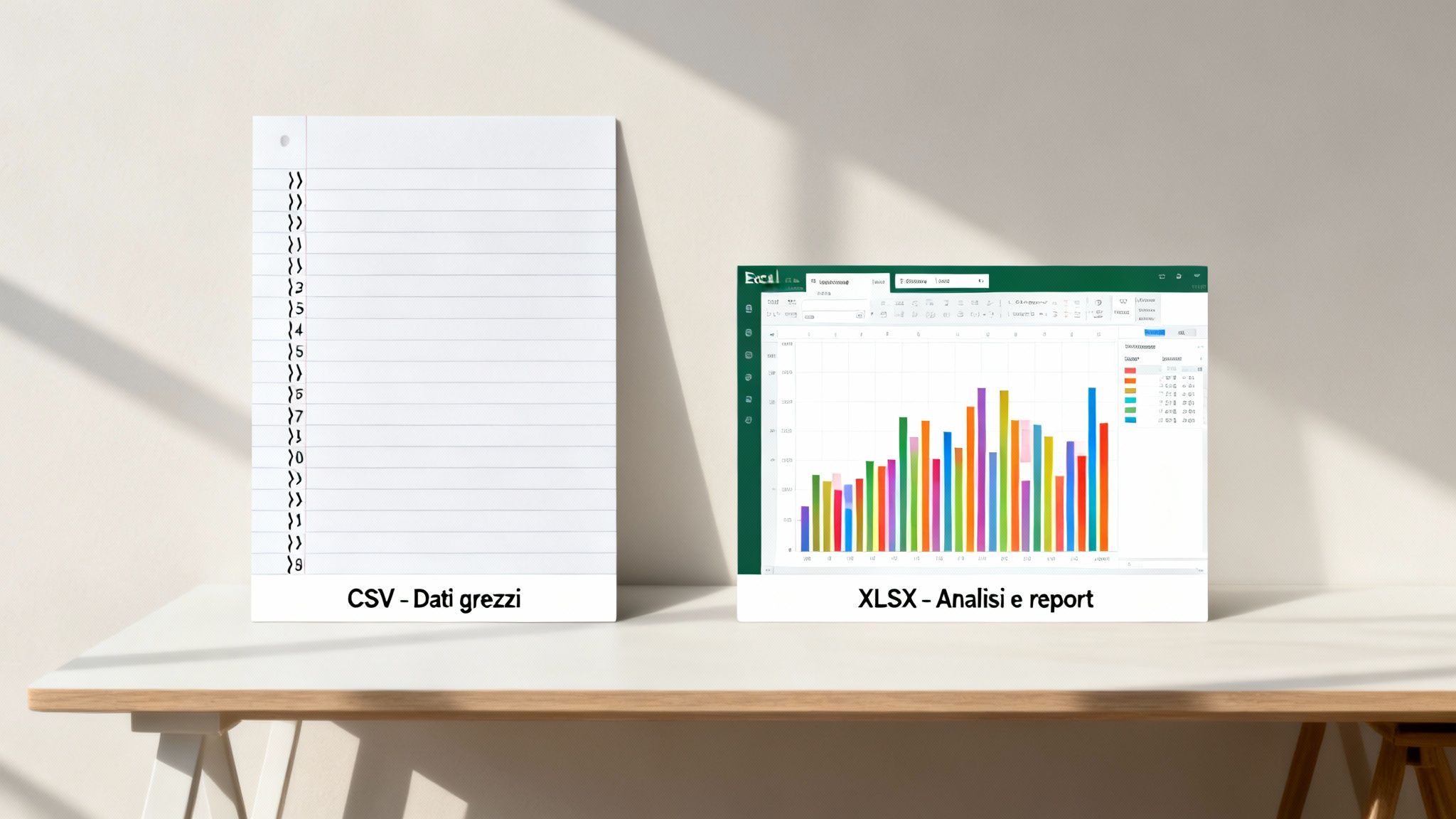
Choosing between CSV and Excel is not just a technical issue, but a strategic decision. Using the right format from the outset saves you valuable time and avoids unnecessary errors.
Think of a CSV file as a shopping list: it contains only essential information, written in a clear and readable way for anyone. It is the ideal format when exporting data from a database, e-commerce site, or management software. No frills, just pure data.
An Excel file (XLSX), on the other hand, is like an interactive recipe book. It doesn't just list the ingredients, it gives you instructions, photos of the finished dish, and maybe even an automatic portion calculator. It becomes the obvious choice when you need to analyze that data, create visualizations, or share a report that needs to be immediately understandable to your team.
To clarify further, here is a table comparing the two formats.
The CSV format excels in specific scenarios where simplicity and compatibility are paramount.
Excel becomes your best friend when you don't just need to store data, but also work on it, model it, and make it speak.
Choosing Excel means moving from simply collecting data to transforming it into knowledge. It is the crucial step that turns numbers into business decisions.
An XLSX file is the best choice when you need to:
Understanding this distinction is the first, fundamental step in transforming raw data into useful information.
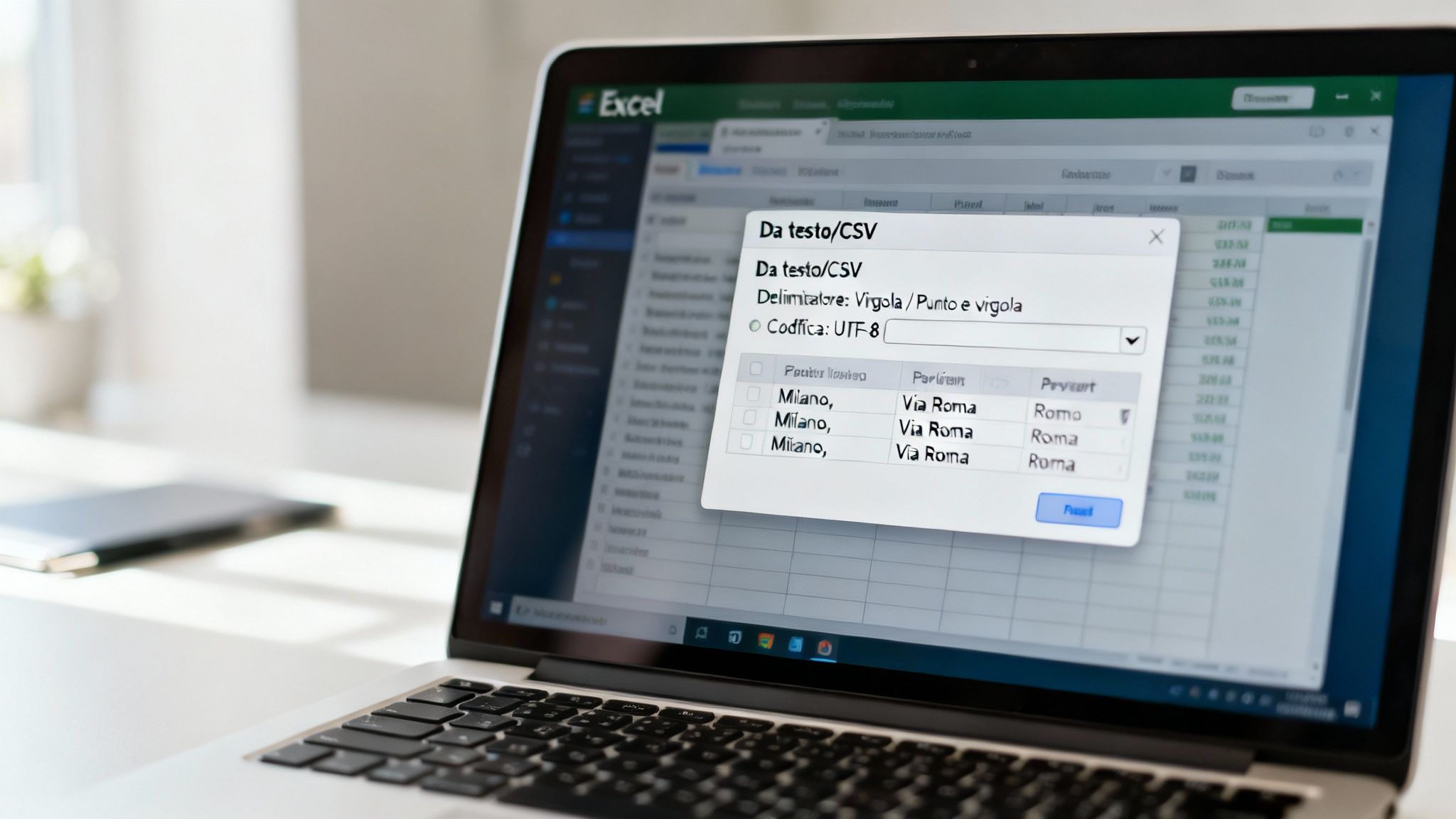
Opening a CSV file in Excel with a simple double-click? That's almost always a bad idea. By doing so, you let Excel guess how your data is structured, and the result is often a disaster: messed-up formatting, truncated numbers, and incomprehensible characters.
To have full control, there is another way. Go to the Data tab on the Excel ribbon and look for the From Text/CSV option. This feature is not just a simple "open file" function, but a real import tool that puts you in control, allowing you to tell Excel exactly how to interpret every single piece of your file.
This is the first, fundamental step in transforming a simple text file into a clean table that is ready for analysis.
Once you start the process, the first critical choice is the delimiter. This is the character that separates one value from another in your CSV file. If you get this wrong, you'll end up with all your data crammed into a single, useless column.
The most common are:
Fortunately, the Excel import tool gives you a real-time preview. Try selecting different delimiters until you see your data organized into perfect columns. This simple step solves 90% of import issues.
Have you ever imported a file and seen accented words, such as "Perché," turn into "Perch�"? This chaos is caused by incorrect character encoding. In simple terms, encoding is the "language" that the computer uses to translate the bytes in the file into the characters we see on the screen.
Unreadable data is useless data. Selecting the correct encoding is not a technicality, but an essential requirement for ensuring the integrity of your information.
Your goal is to find the encoding that correctly displays all letters, especially accented letters or special symbols. In the import window, look for the "File source" drop-down menu and try a couple of options:
Here too, the preview is your best friend: check that everything is legible before confirming.
Here's a classic and really tricky mistake. Think of codes such as postal codes (e.g., 00184 for Rome) or product codes (e.g., 000543). By default, Excel sees them as numbers and, to "clean" them, deletes the leading zeros, turning "00184" into a simple "184." The problem is that this corrupts the data.
To avoid this, in the last step of the wizard, Excel will show you a preview of the columns, giving you the option to define the format for each one. This is where you need to take action: select the column containing the postal codes or other numerical codes and set the data type to Text. This will force Excel to treat those values as character strings, preserving the leading zeros intact.
Even when you follow the perfect procedure, sometimes data seems to have a mind of its own. It's time to tackle the real problems, the ones that arise when you work with a "dirty" or non-standard Excel CSV file.
Often, problems are not visible to the naked eye. You may be dealing with invisible white spaces at the end of a product code that prevent a formula SEARCH.VERT to work. Or with data that spans multiple rows but logically belongs to a single cell. These are the details that turn a five-minute import into an afternoon of frustration.
One of the most common headaches is Excel's automatic data conversion. The program tries to be "smart," but often ends up corrupting the information.
Consider very long numeric product codes, such as a barcode. Excel may interpret them as scientific numbers, transforming 1234567890123 in 1.23E+12 and losing the final digits. Another classic is date handling: if your CSV uses the American format (MM/DD/YYYY), Excel may interpret it in its own way, swapping months and days.
To avoid these disasters, the solution is almost always the same: use the import wizard. This screen allows you to force the correct format for each column before Excel can do any damage.
Setting a column as Text is the decisive step in protecting codes, IDs, or any numbers that should not be used for mathematical calculations.
We often see a practical example of this problem with Italian public data. The archive of Italian municipalities, which contains 7,904 entities, is a perfect case study. If you try to import the CSV file into Excel without taking precautions, telephone prefixes such as '011' for Turin are transformed into '11', losing the initial zero. This data becomes unusable for any system that requires the correct format. The same archive also shows that 98% of municipalities have fewer than 15,000 inhabitants, which is essential information for demographic analysis that depends on flawless data import. You can find more information about this valuable resource by consulting the complete database of Italian municipalities.
Sometimes, problems only arise after you have uploaded your data. Don't worry, here are some quick fixes for the most common issues:
CANCEL.SPACES in a new column to remove all unnecessary spaces at the beginning, end, or between words.FREE is designed specifically to remove them.REPLACE to replace the line break character (often CODE.CHARACTER(10)) with a simple space.Mastering these cleaning techniques transforms data management from a hindrance to a competitive advantage. Instead of struggling with files, you start putting them to work for you.
Becoming skilled at solving these problems allows you to tame even the most chaotic CSV files, ensuring that your analyses always start from a solid database.
If you find yourself manually importing and cleaning up the same CSV report every week, you're wasting valuable time. It's time to discover Power Query, the data transformation tool built into Excel, which you can find under the Data tab > Get & Transform Data. It's not just an importer: it's a smart recorder.
Power Query observes and stores every single action you perform on the data: removing columns, changing formats, filtering rows. The entire cleaning process is saved as a "query." The next time you receive the updated report, you only need to click the Refresh button to instantly re-execute the entire sequence.
This approach not only eliminates hours of repetitive work, but also ensures absolute consistency, eliminating the risk of human error.
Let's imagine a typical scenario: a weekly sales report in CSV format. Instead of opening it directly, use Data > From Text/CSV to launch Power Query. A new window will open, the Power Query Editor.
From here, you begin to shape the data. Each action is recorded in the "Steps Applied" panel on the right:
Once the data is cleaned and structured as desired, click Close and Load. Excel will create a new worksheet with a table linked to your query. Next week, all you have to do is replace the old CSV file with the new one (keeping the same name and location), open the Excel file, and go to Data > Refresh All. You will see the table populate with the new data, already cleaned and formatted.
This infographic shows exactly the cleaning process that Power Query automates.
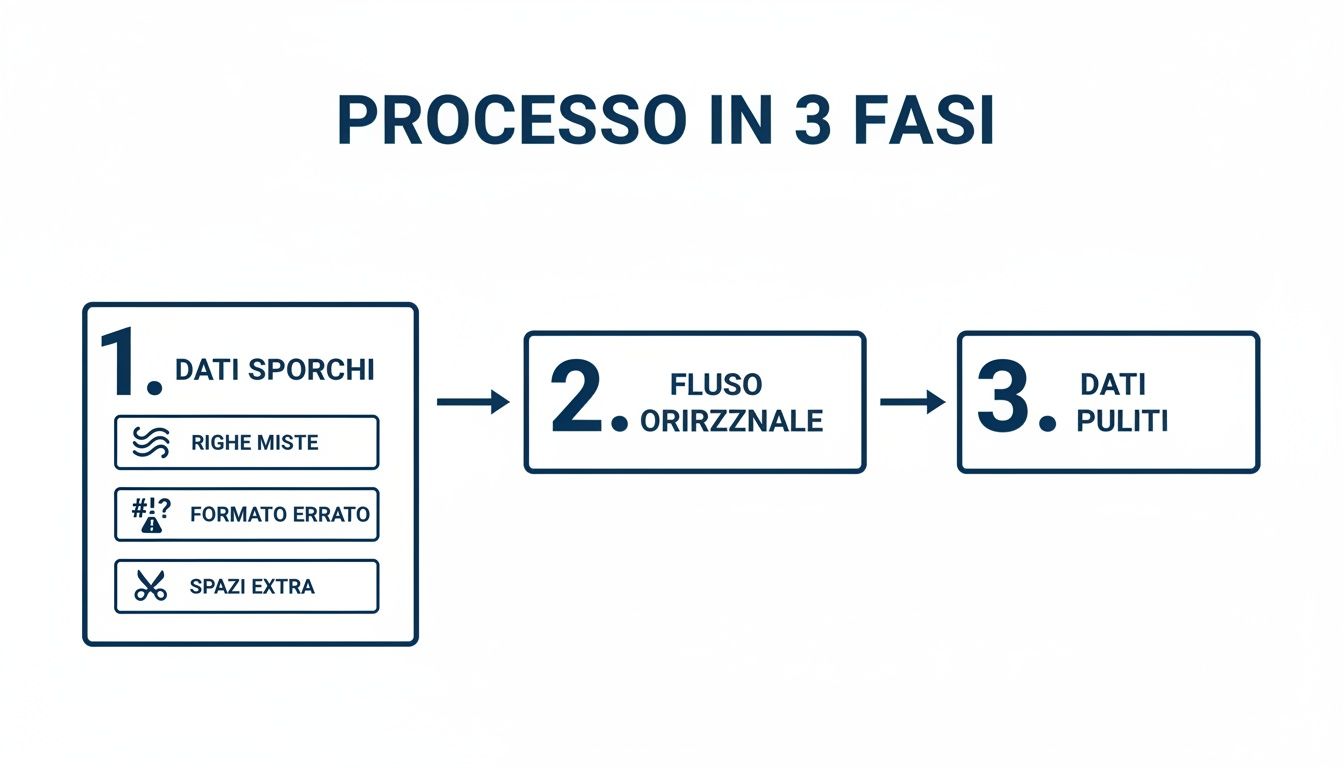
Viewing this flow helps you understand how each recorded step contributes to creating a robust and repeatable data import process.
The true power of Power Query emerges when you use it to connect to dynamic data sources directly online. Consider Istat's "Noi Italia" platform, which offers over 100 economic indicators in CSV format. You can create a query that connects directly to this data. Instead of manually downloading the file every month, simply update the query to automatically import, for example, the most recent employment rate. To learn more, you can explore Istat indicators directly on their portal.
Automation with Power Query isn't just about saving time. It's about creating a reliable system that allows you to trust your data, every time.
This approach transforms the way you interact with external data. To integrate these flows with other business systems, explore how Electe APIs Electe connections between different platforms, taking automation to the next level.
To conclude, here are quick answers to frequently asked questions when dealing with CSV and Excel files, to resolve any doubts that may be holding you back and help you work with greater confidence.
This happens because Excel, by default, thinks that a column full of digits is numerical and "cleans" the zeros it considers superfluous. Thus, a postal code such as '00123' simply becomes '123'.
To prevent this, use the import wizard (Data > From Text/CSV). When prompted to define the data type for each column, select the "offending" column and set it to Text. This tells Excel not to make any assumptions and to treat those values as character strings.
This is the number one symptom of an incorrect delimiter. Your CSV file uses a separator (perhaps a semicolon) that Excel did not automatically recognize, often due to a "blind" import with a double-click.
The solution is the From Text/CSV feature. This tool puts you in control, allowing you to manually specify the correct delimiter: comma, semicolon, tab, or other. When you see the columns split correctly in the preview, you've found the right setting.
The standard CSV format is outdated and can cause problems with special characters or accented letters. The risk is that when you open the file on another computer, these characters will be replaced by incomprehensible symbols.
Choosing 'CSV UTF-8' guarantees universal compatibility. It is the encoding standard that ensures characters such as "à," "è," and "ç" are displayed correctly on any operating system and in any language.
In practice, if your data is not just plain English text and numbers, always use CSV UTF-8.
To manage your data effectively, remember these three golden rules.
You have imported, cleaned, and analyzed your data. The moment that can make or break hours of work is saving. Reopening a CSV file, working on it by adding formulas and charts, then pressing "Save" and overwriting everything with a flat text file means losing everything. CSV, by its nature, only saves the raw data from the active sheet.
When your analysis is complete and you want to preserve every detail, there is only one sensible choice: save the file in Excel's native format, XLSX. This format is the secure "container" for all your work.
Keep this golden rule in mind: CSV is for transporting raw data, whileXLSX is for processing and storing it. Mastering this distinction will save you a tremendous amount of time.
Knowing how to handle a CSV file in Excel is a fundamental skill, but it's only the starting point. You've learned how to import data correctly, clean it, and automate processes, creating a solid and reliable foundation for your analyses. This is the first, crucial step in transforming raw numbers into business decisions.
Now that your data is ready, it's time to unlock its true potential. AI-powered analytics platforms like Electe where Excel leaves off, turning your clean files into accurate forecasts, customer segmentation, and strategic insights—without you having to write a single formula. Leverage the synergy between these tools: use Excel for preparation and rely on Electe uncover what's really hidden in your data. Start turning your information into a competitive advantage.
Electe, our AI-powered data analytics platform for SMEs, takes those clean CSV files and converts them into predictive analytics and automatic insights with just a few clicks.

.svg)


.svg)
.svg)